
AbleSet
OSC Connections
AbleSet allows you to create OSC connections that enable you to send commands to external devices and applications, and receive values from them.
To add a new connection, open the "OSC Settings" page under "MIDI Mapping, OSC & Scripting", then click "Add New Connection".
Give the connection a recognizable name without spaces, e.g., "TouchOSC" or "X32". Then, set the Send Address to the IP address and port of the device or application that you want to send OSC commands to. Separate the IP address and port with a colon, e.g., "10.0.0.3:8000".
You can now send OSC commands to the connection by referencing its name. For
example, if your connection is called "X32", you could send a command from
OSC tracks, MIDI mapping, or
scripting. Use a colon followed by the connection name and
the command, e.g., :X32/ch/1/mix/on 1.
To listen for incoming values, enter a port number in the Listen Port field that isn't already in use on your computer. AbleSet will then listen for values on that port and store them for use in Canvases and scripts. You'll see a list of received values at the bottom of the page.
You must specify at least one of the following: a Send Address (to send commands) or a Listen Port (to receive values).
Sending OSC on Create and Destroy
Some OSC servers require specific commands to send values to AbleSet. You can add those to the OSC on Create and OSC on Destroy fields. These commands are automatically sent to the specified Send Address when the connection is created or destroyed, and you don't have to prefix them with the name of the connection.
Using AbleSet with AbletonOSC
AbletonOSC is a powerful Control Surface Script that allows you to access almost any part of your Ableton Live project via OSC.
To set it up, download the script from AbletonOSC's GitHub page and follow their installation guide to add it to Live. Then, in AbleSet, create a new connection, name it "AbletonOSC", set the Send Address to "127.0.0.1:11000" and the Listen Port to "11001":
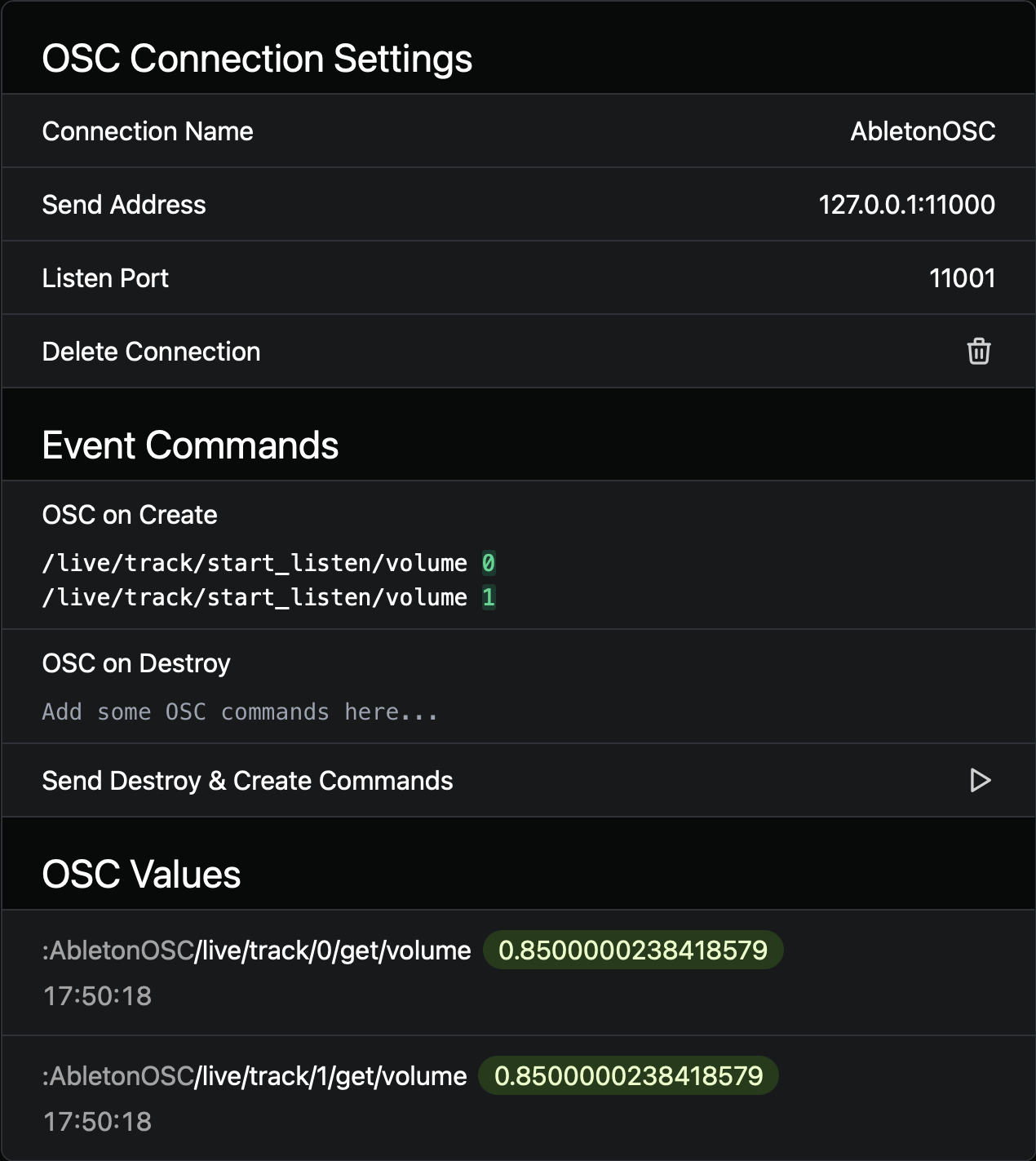
You can now send OSC commands to :AbletonOSC.
To receive updates from AbletonOSC, add start_listen commands to the OSC on
Create field. These commands tell AbletonOSC to send value updates whenever
they change. In the example above, I want to receive the volume of the first
and second track whenever it changes, so I added /live/track/start_listen/volume 0
and /live/track/start_listen/volume 1.
Incoming Values from AbletonOSC
When requesting track, clip, or device values from AbletonOSC, the script replies
with a value that contains both the index of the track, clip, or device, and the
requested value. For example, when sending /live/track/get/volume 0, the script
replies with /live/track/get/volume 0 0.85.
Since AbleSet only stores one value for a given address at a time, that would mean that you can't access more than one track volume at a time, for example.
To work around this, AbleSet transforms incoming OSC from AbletonOSC so the index
is included in the OSC path instead of the list of values, so
/live/track/get/volume 0 0.85 becomes /live/track/0/get/volume 0.85.
This page was last modified on 2026-05-31