
AbleSet
AbleSet Connect
AbleSet Connect is an iOS/iPadOS app that allows you to connect to AbleSet from your iPad or iPhone. You can download it here.
To use it, make sure that your device is on the same network as your computer. The app automatically searches for and connects to AbleSet on your network.
This app also extends the web app with native features, like keeping the screen on for as long as the app is in foreground, reporting the current battery state and screen brightness to see on the Devices page, and allowing you to change the brightness remotely.
Native MIDI Forwarding
By default, AbleSet Connect makes all MIDI devices connected to your iPad or iPhone available to AbleSet, so you can MIDI-map and send MIDI to them via OSC or Scripting.
When AbleSet Connect detects multiple hosts on the network, like in an AbleNet setup, it will make its connected MIDI devices available to all hosts.
To disable this native MIDI forwarding, go to Settings -> MIDI Forwarding and disable "Native MIDI Forwarding".
RTP MIDI Forwarding
AbleSet Connect can also make connected MIDI devices available via RTP MIDI, which allows you to send MIDI to any computer or device on your network supporting this protocol.
To get started, go to Settings -> MIDI Forwarding and enable "RTP MIDI Forwarding". You'll then see a list of available sessions. Enable the ones you'd like your iPad or iPhone to connect to, and AbleSet will establish a connection.
By default, AbleSet Connect forwards all MIDI inputs from your device to connected RTP MIDI sessions and MIDI from connected sessions to all MIDI outputs. You can disable MIDI inputs and outputs below the list of sessions.
While RTP MIDI works over Wi-Fi, I'd recommend using an Ethernet connection for the best latency, especially if you want to use it for more than just MIDI mapping.
Creating an RTP MIDI Session on macOS
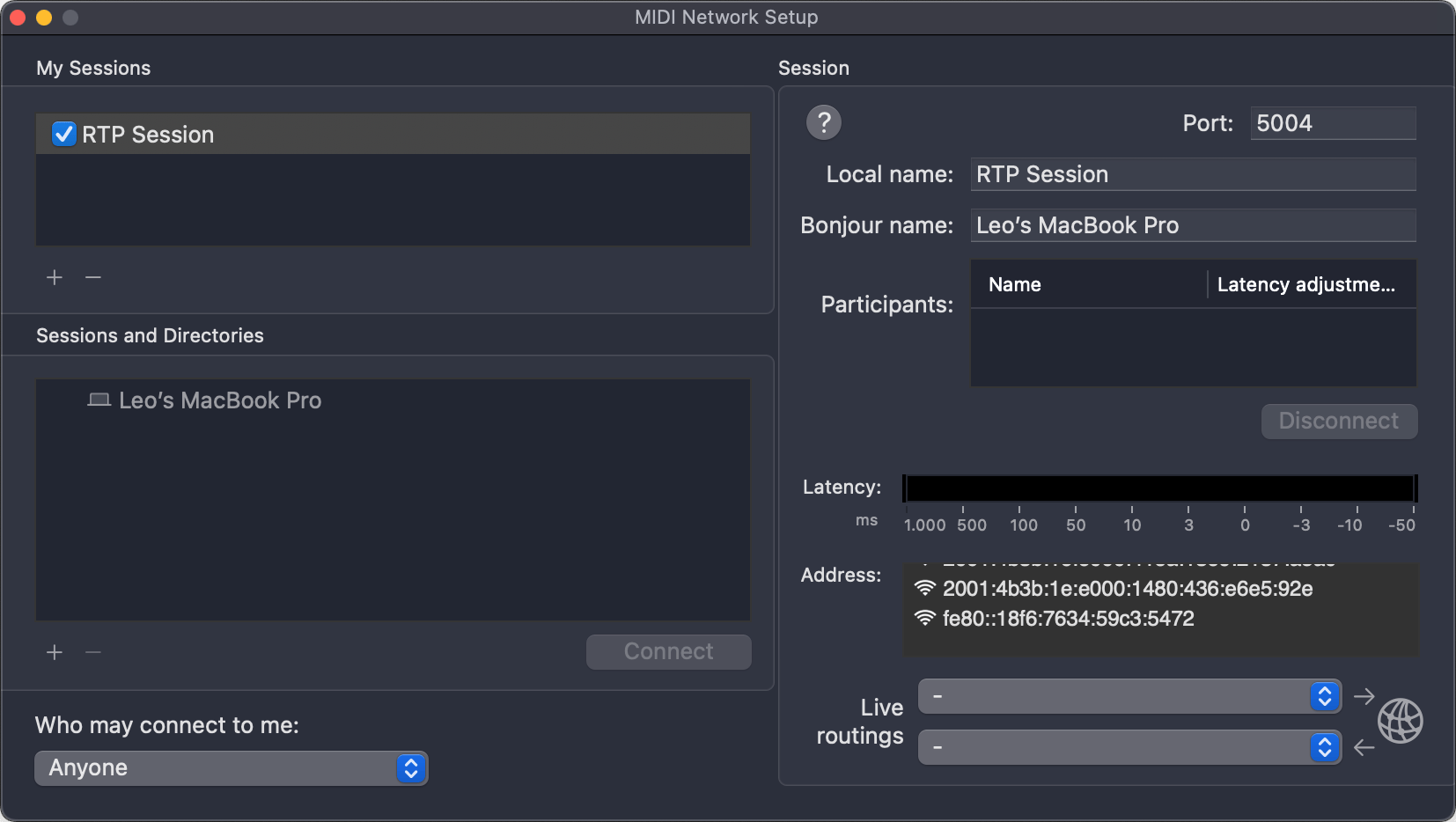
To create an RTP MIDI Session, open Audio MIDI Setup, and click Window -> Show MIDI Studio, then click the globe icon on the top right to open the MIDI Network Setup window.
Create a new Session by clicking the "+" button under "My Sessions", then give it a local name and a Bonjour name which is what other devices on the network will see. In this example, I'll set the local name to "RTP Session" and keep the Bonjour name as-is. Then click the checkbox next to the session name to enable it.
To allow AbleSet to connect to your session, make sure that "Who may connect to me" is set to "Anyone".
You should now see the session in AbleSet Connect. To connect to it, enable the toggle next to its name:
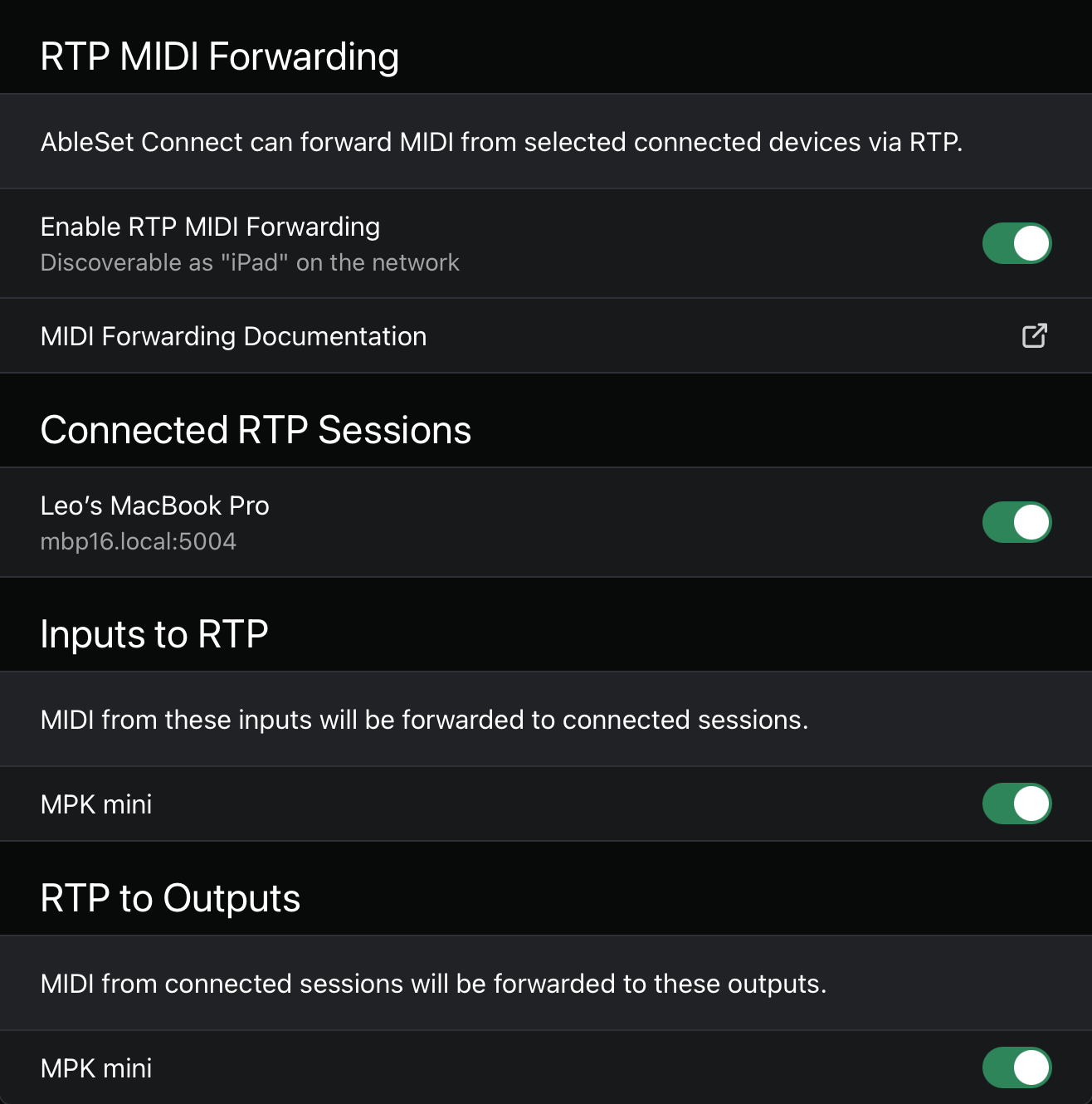
The device should now appear in your session's list of participants and you can now receive and send MIDI between your Mac and iPad or iPhone.
RTP MIDI Troubleshooting and Caveats
- If your iPhone or iPad doesn't appear on your network and won't connect to your MIDI session, you might have to restart it. This seems to be a bug with iOS.
- Creating RTP MIDI Sessions on macOS Tahoe doesn't seem to work reliably at this time.
Haptics
If you're using AbleSet Connect on an iPhone, certain events will trigger haptics to give elements a more physical feel. This includes Buttons and Sliders in Canvases, notifications, and cue lights. You can enable this feature using the "Enable Haptics" setting.
Deploying via MDM
If you're deploying AbleSet Connect via MDM, you can pre-set some settings using a custom plist file. How to set this up depends on the product you're using to manage your Apple devices.
The following settings are available:
| Name | Type | Example |
|---|---|---|
| preferredHost | string | playback.local |
| showStatusBar | boolean | true |
| enableHaptics | boolean | true |
| swipeToNavigate | boolean | true |
Settings defined via MDM are locked and can't be changed from within the app.
This page was last modified on 2026-07-06